01 / STREAM DECK
1. Plug it in
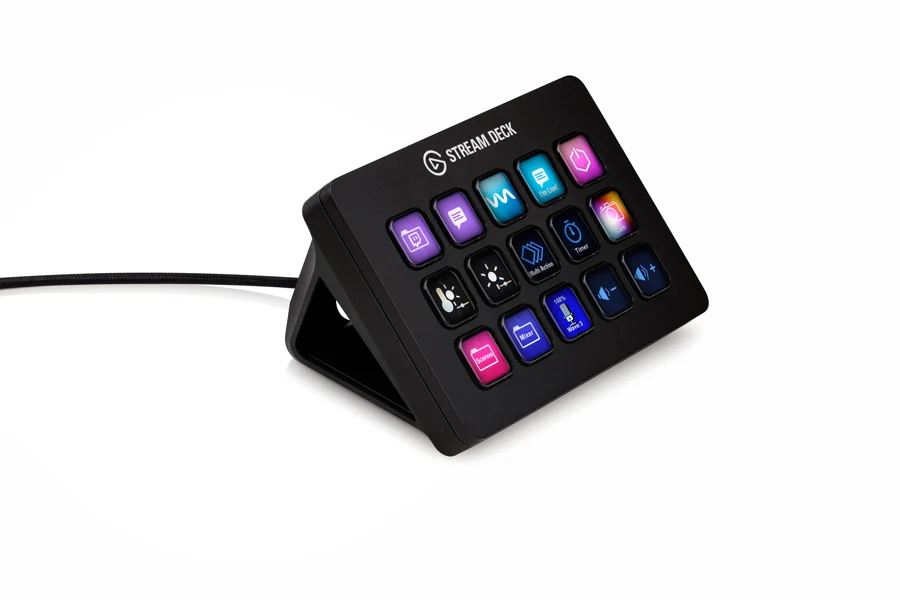
Connect the Stream Deck to the same Windows laptop that runs Balls Out Bingo. Install the Stream Deck app from Elgato and open it.
The Balls Out Bingo actions need Stream Deck software 6.6 or later. The laptop controls still work if you do not have a Stream Deck.
02 / STREAM DECK
2. Add the Bingo buttons
Open the Stream Deck page inside the Windows game. Press Install / Update Stream Deck Actions and accept the installation in the Stream Deck app.
Find Balls Out Bingo in the action list on the right. Drag an action onto an empty key. Drag the actions, rather than the picture files.
03 / STREAM DECK
3. Make it yours
Start with Next Number, Check Claim, Music and Booze Ball. Add Start, Confirm Winner, Break or Open Audience Screen wherever you find them comfortable.
You do not need to fill every key. A small layout with your favourite controls is often easiest to use.
04 / STREAM DECK
4. Check before the crowd arrives
Keep both apps open and choose Check Connection in the game. Look for the message that Stream Deck is connected to Bingo.
Start a practice game and try the buttons. Bright buttons are ready to use; dim buttons are waiting for the right part of the game.
05 / STREAM DECK
If the buttons do not appear
Run the installer again and accept the installation in Stream Deck. Fully quit and reopen the Stream Deck app if its action list has not refreshed.
Return to the game and check the connection again. Use the on-screen controls while you sort it out.